Guide
Online Course Gantt Chart: Plan Your Launch in 10 Weeks
Creating an online course means managing five separate workstreams — planning, content development, recording, platform setup, and marketing — all of which overlap in ways a to-do list can’t capture. A Gantt chart gives you a single view of the entire production arc, so your launch date stays fixed instead of drifting every time one phase runs long.
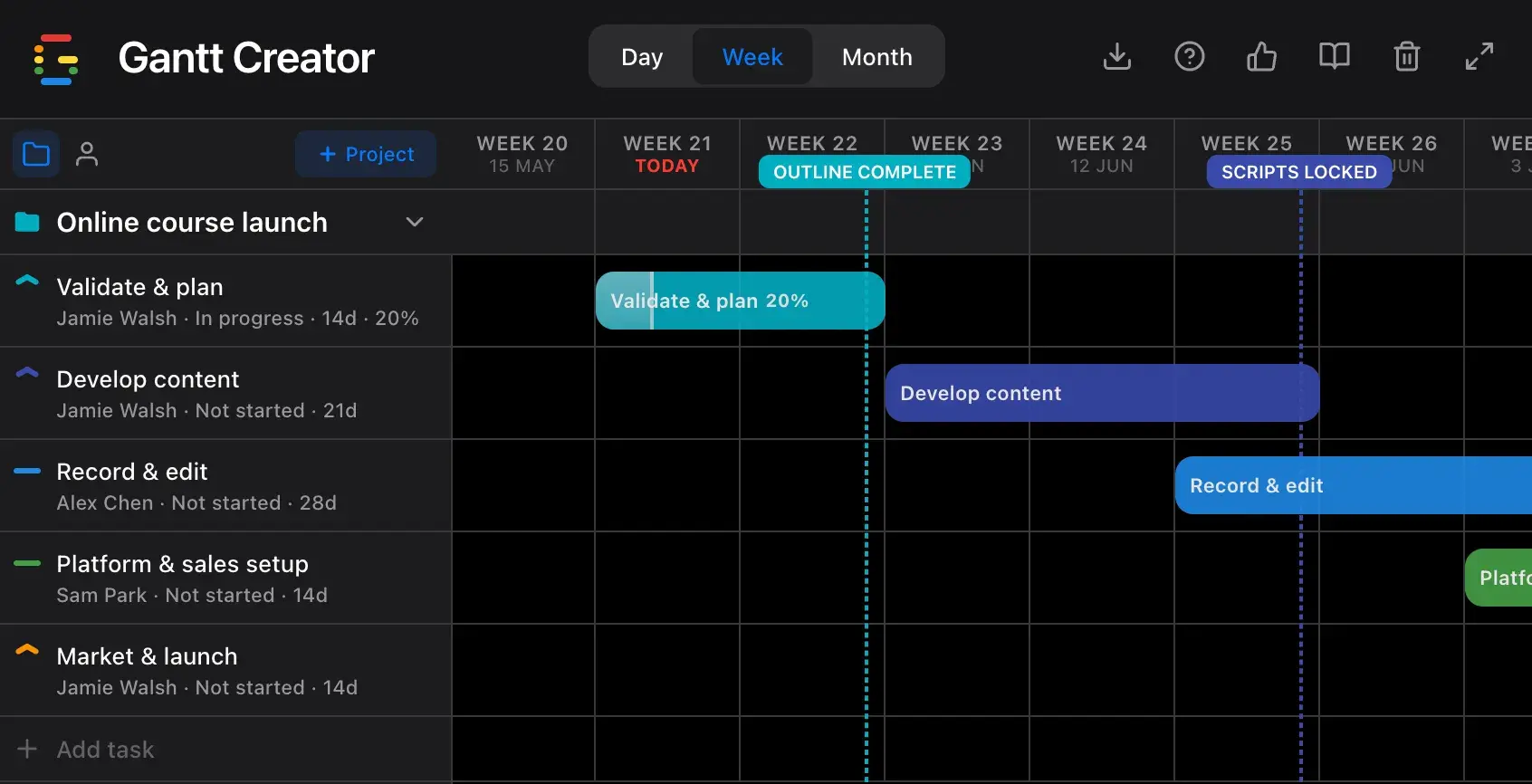
The 5 phases of an online course Gantt chart
Most course creators underestimate how long production takes because they plan phases sequentially in their head — but in practice they overlap. A Gantt chart makes those overlaps intentional rather than accidental.
- Talk to 5–10 potential students to validate the topic
- Define the single transformation your course delivers
- Map out 5–7 modules with lesson titles and rough durations
- Choose your platform (Teachable, Kajabi, Podia, etc.)
- Set your launch date and work the timeline backwards
- Write scripts or detailed lesson outlines, module by module
- Design slides, workbooks, and any downloadable resources
- Build quizzes, assignments, or discussion prompts
- Final review of all written content before recording starts
Tip: Finish one module completely before starting the next. Jumping between modules mid-draft is the fastest way to stall production.
- Record video or audio lessons in batches by module
- Edit footage yourself or send batches to your editor
- Add captions, lower thirds, and B-roll where needed
- QA every lesson for audio quality, pacing, and accuracy
- Export at your platform’s required specs
- Create course structure and upload edited lessons as they finish
- Write sales page copy and design the enrollment page
- Configure pricing, checkout, and payment processor
- Set up welcome email and any lesson drip sequences
- Test the full student experience end-to-end
This is where a Gantt chart earns its keep: you can start uploading completed modules while still recording others. Without a visual plan, most creators wait until everything is done — adding 1–2 unnecessary weeks to the timeline.
- Warm your email list with teaser or behind-the-scenes content
- Publish launch content across your channels (posts, emails, video)
- Open enrollment — cart open for 5–7 days is typical for live launches
- Monitor sales, answer buyer questions, and onboard early students
- Collect testimonials and feedback for the next cohort
Why task order matters more than task count
The hidden risk in course creation isn’t running out of time — it’s discovering a blocking dependency too late. A Gantt chart makes these visible up front:
- You can’t edit a lesson you haven’t recorded.
- You can’t upload content that hasn’t been edited.
- You can’t finalise the sales page until the course scope is locked.
- Marketing needs to start before launch day, not on it — which means your warm-up content needs to be written while you’re still in Phase 4.
When you plot these as bars on a timeline, the sequencing becomes obvious and the pressure points — the weeks where two or three workstreams all hit simultaneously — become visible early enough to do something about them.
How to build your course Gantt chart in Gantt Creator
1. Create a project for your course
Add a new project and name it after your course. Each project gets its own color so it stays visually distinct if you’re running multiple launches at once.
2. Add one task per phase — then drag to adjust
Create five tasks, one per phase above, with the week ranges as start and end dates. Once they’re on the timeline, drag a bar to shift it in time or drag its edges to resize it. No need to re-enter dates manually when your schedule slips.
3. Assign resources to each phase
Resources represent the people doing the work — you, a video editor, a virtual assistant, a co-creator. Assign a resource to each task to show who owns it. Switch the sidebar to Person view to see each person’s workload at a glance and spot weeks where someone is stretched across multiple phases.
4. Pin your fixed dates as milestones
Add milestones for dates that can’t move: “Scripts locked,” “Recording done,” “Sales page live,” “Cart open.” Milestones appear as diamond markers on the timeline — they’re the dates you protect when a phase runs long.
5. Update progress and status as you go
As production moves, set each task’s progress (0–100%) — a translucent fill shows how far along you are inside the bar. Set the status to In progress, Blocked (waiting on your editor or equipment), or Completed so you always know what’s actually done versus what just looks done on the calendar.
6. Switch to Week view for the full arc
Switch to Week view to see your entire 10-week production at once. If the plan looks overwhelming, that’s useful information — better to see it now and adjust the launch date than to discover it in week 7. Export a JSON backup periodically so your plan is safe if you switch devices or clear your browser.
Start planning your course today
Gantt Creator is free, runs in your browser, and requires no account. Open it, set your launch date, and build your production timeline in under 10 minutes.